Search This Site

Custom Search
|
 |
|||||
Configuring A Wired Or Wireless RouterConfiguring a wireless router (e.g. linksys router configuration) is required to connect to the Internet. What are the best wireless routers? Compare routers to understand the differences between computer routers. The next step in router setup is to configure your wireless, or wired, router. NOTE: If you are using a Static IP address, before you can begin configuring your router, you need to get some basic information from your ISP (Internet Service Provider). You need the following:
If you are not using a static IP, and most home users will not be, continue on. Router Configuration
Note: The Linksys routers that I recommend come with a setup CD that includes a setup wizard. (I use Linksys because I've found they have one of the best wireless routers; but each user has different needs and different computers. Compare routers for features and benefits; all computer routers are not the same.) The instructions that follow are not for the wizard, they are step by step to manually complete the linksys router configuration. If you wish to use the wizard, refer to your manual for instructions to do this. The instructions that follow are for a Linksys router configuration, but most routers will be similar in setup. Configuring Your Wireless Router
Basic TabMost home users will use the Automatic Configuration - DHCP setting on this page. However, if you are using a static IP, and have the information from your ISP, this is where you will enter it. In the Internet Setup section, select static IP and fill in the Internet IP Address, Subnet Mask, Default Gateway, and DNS Server IP Addresses. You may see some other connections in this area, but they are not important for basic setup. Refer to your manual for more information on them. There are 2 optional settings in this area that may need to be configured - MTU (Maximum Transmission Unit) and Host Name and Domain Name. Most home users will not need to set these. Your ISP can tell you if they are needed. AdministrationOn the administration tab you will see a management section. This is where you can change your password. It is highly recommended that you change the password from the factory default. Change it to something that you will remember. Enter it in the password field and in the confirm password field. WirelessIf your router is not wireless, you can skip this section. There are 2 main sections here to setup, basic, and security. Basic
SecurityWEP / WPA - Setup your WEP or WPA key here. WEP offers 2 levels of encryption, 64/40 and 128 bit. I recommend using 128 bit as it is a stronger encryption. To automatically generate your key, enter a passphrase and click generate. If that option is not available, you can manually enter a WEP key in one of the fields labeled 1-4. If you use multiple, then select the one you want to use in the TX Key field. Once you have your settings entered, click Save. Security of your wired or wireless router is extremely important. An unsecure router leaves your network open for anyone passing by to hop on and access your computer. You could even be providing free Internet access to your neighbor. The following are basic security precautions:
If, at this point, you cannot connect to the Internet, go back over the settings discussed above and ensure that they are set correctly. Also refer to the troubleshooting and FAQ sections of your wireless router manual for more information, or to narrow down a problem. As a last resort, contact the router's manufacturer. Most manufacturers are more than happy to help you with the settings. On to Connecting Your Computers Return to Computer Guides from Wired and Wireless Router Configuration |
|
|||||
|




|
||||||
|
| Home Page | Motherboards | CPU | Memory | Computer Drives | Graphics | Power Supply
| Input Devices |
| Output Devices | Cooling | Cases | Modems | Troubleshooting | Computer Guides | Buying Guide | | Free Games | Computer Software | Green Computers | Ultra Mobile PC | Glossary | Builder's Corner | | Site Index | Contact Us | Advertising | Return to top
Copyright© 2008-2014. Voice Marketing Inc. All Rights Reserved. Read our Privacy Policy. |
||||||
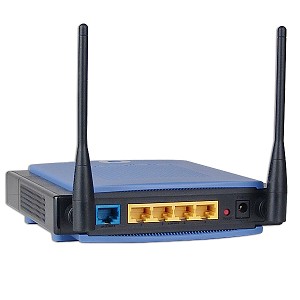 Configuring your router will allow you set up security and get everything set to connect to the Internet.